Time Slots
Not every event is a single show on a single day. If you run classes, workshops, tours, or any event that happens across multiple dates or time slots, this feature is for you.
Time Slots let you define when your event is available — a single date, every Friday, daily for a month, or the 15th of each month — and attendees pick their preferred slot when purchasing tickets. Each slot can have its own capacity, so you stay in control of how many people can attend each session.
When Do You Need Time Slots?
Time Slots are optional. Most events (a concert on Saturday night, a conference on March 10th) don't need them — the event date itself is enough.
Use Time Slots when:
- Recurring events — A yoga class every Tuesday and Thursday
- Multi-day events — A 5-day art workshop where attendees sign up per day
- Limited-capacity sessions — A cooking class that runs 3 times a week, 12 spots each
- Tour or experience bookings — A guided tour at 10:00, 14:00, and 16:00 daily
If your event happens once at a fixed time, you can skip this entirely.
Where to Find It
In your Event Panel sidebar, go to Event Setup → Time Slots.
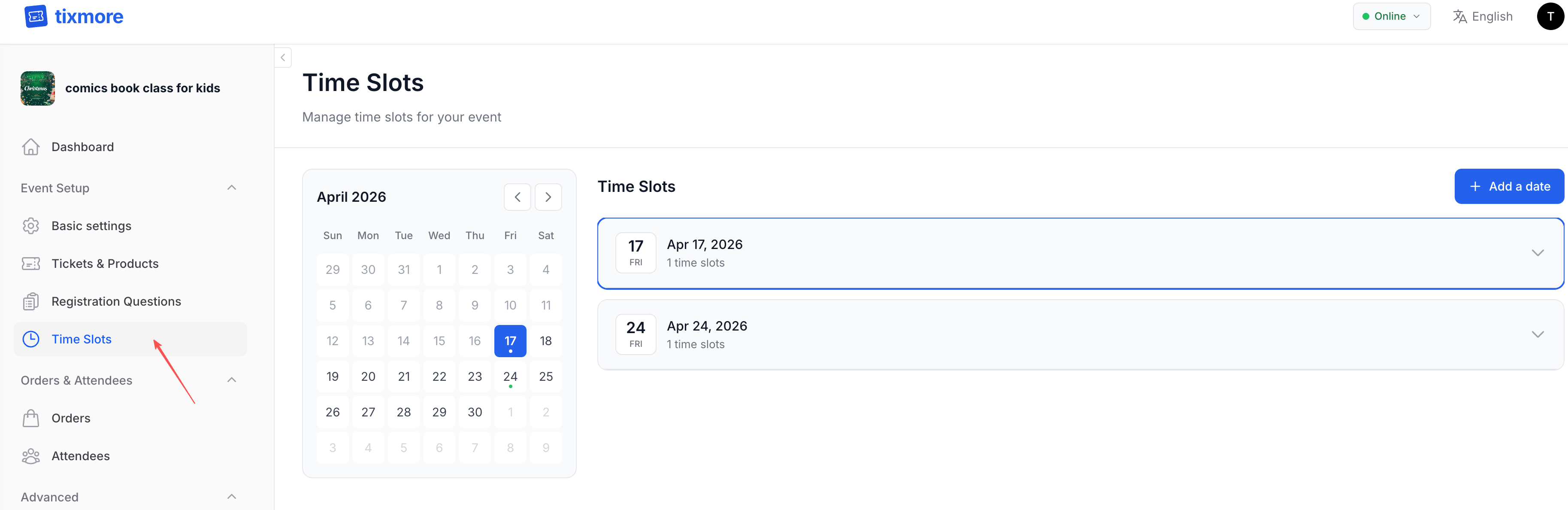
The page has two areas:
- Left side — A calendar showing which dates have time slots (marked with colored dots)
- Right side — The list of time slot rules, with an "+ Add a date" button
Creating a Time Slot
Click "+ Add a date" (or "+ Add time slot" within a date) to open the creation dialog.
Single Date
The simplest option — one specific date and time.
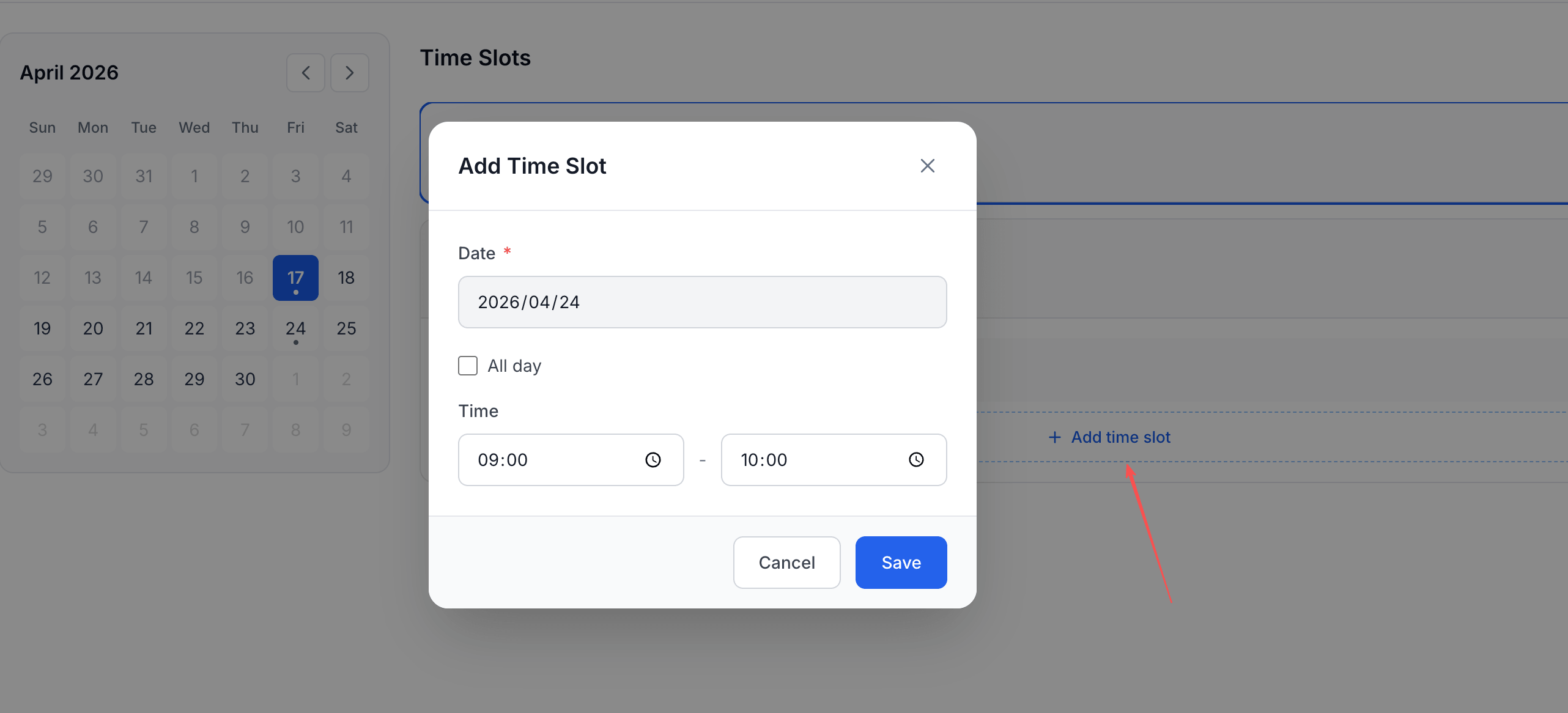
| Field | Required | Description |
|---|---|---|
| Date | Yes | The date for this slot (must be today or in the future) |
| All day | No | Check this if the slot has no specific start/end time — e.g., an all-day open house |
| Time | If not all-day | Start time and end time (e.g., 09:00 – 10:00) |
Click "Save" and the slot appears on the calendar and in the list.
Recurring Slots
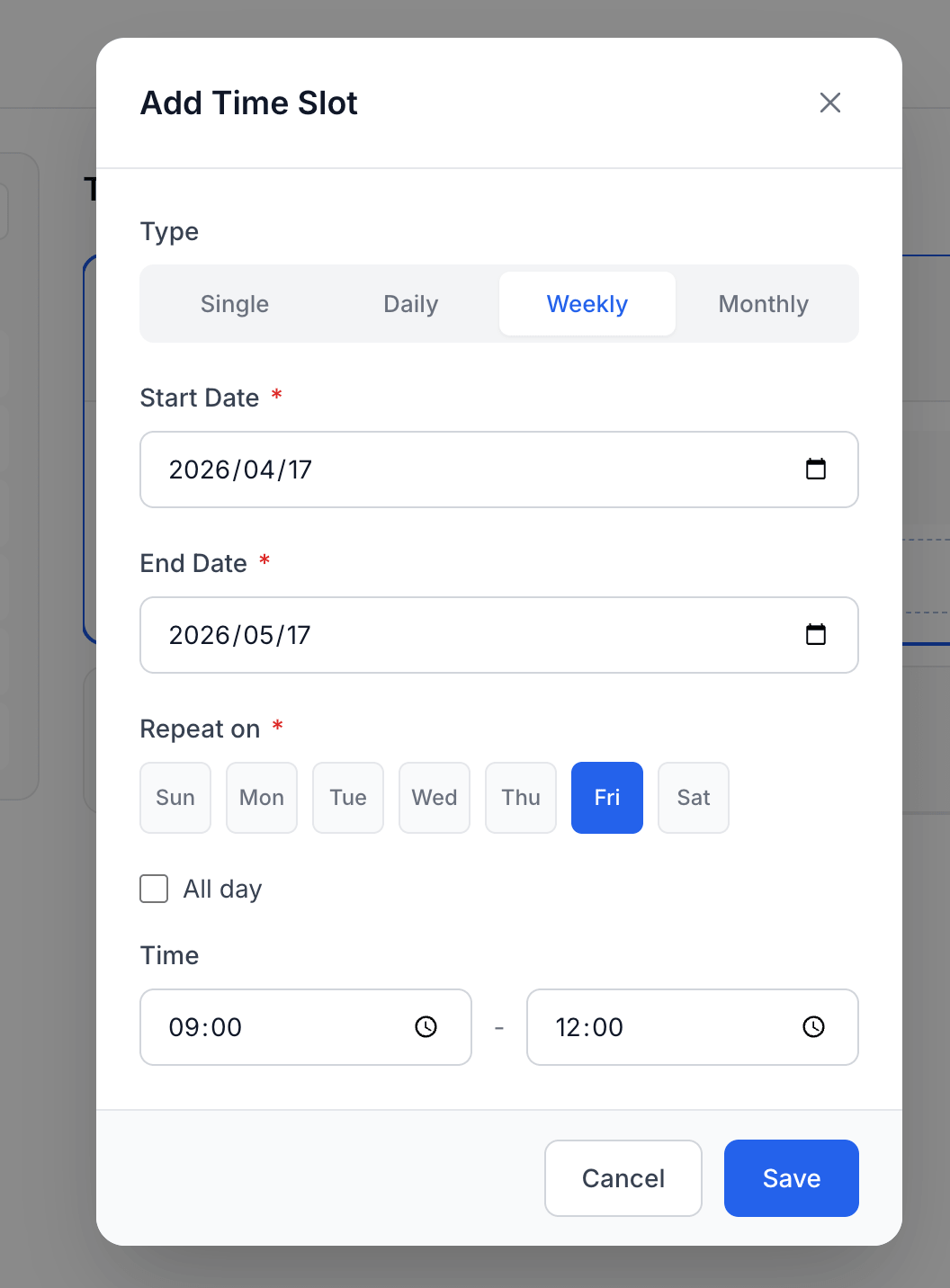
For events that repeat on a pattern, switch the Type to Daily, Weekly, or Monthly.
Daily
The slot repeats every day within a date range.
| Field | Required | Description |
|---|---|---|
| Start Date | Yes | First day of the recurrence |
| End Date | Yes | Last day of the recurrence |
| All day / Time | — | Same as single date |
Example: A pop-up shop open daily from April 1 to April 30, 10:00–18:00.
Weekly
The slot repeats on specific days of the week.
| Field | Required | Description |
|---|---|---|
| Start Date | Yes | First week of the recurrence |
| End Date | Yes | Last week |
| Repeat on | Yes | Select one or more days — Sun, Mon, Tue, Wed, Thu, Fri, Sat |
| All day / Time | — | Same as single date |
Example: A drawing class every Tuesday and Friday, 09:00–12:00, from April 17 to May 17.
Monthly
The slot repeats on the same day each month.
| Field | Required | Description |
|---|---|---|
| Start Date | Yes | First month |
| End Date | Yes | Last month |
| Day of month | Yes | Which day (1–31). If the month doesn't have that day (e.g., 31st in February), it adjusts to the last day of the month |
| All day / Time | — | Same as single date |
Example: A monthly book club meeting on the 15th, 19:00–21:00, from January to December.
- Single — One-off sessions, special dates
- Daily — Pop-ups, festivals, multi-day exhibitions
- Weekly — Classes, regular meetups, training programs
- Monthly — Book clubs, community gatherings, recurring workshops
Managing Time Slots
Once you've created rules, the calendar shows dots on dates that have slots. Click a date to see its slots in the right panel.
Editing a Rule
Click the rule card to expand it, then use the edit icon to modify any field — type, dates, time, or recurrence pattern.
Excluding Specific Dates
Running a weekly class but closed on a holiday? You can exclude individual dates from a recurring rule without deleting the whole rule. The excluded date will be skipped — attendees won't see it as an option.
This is useful for:
- Public holidays
- Instructor unavailability
- Venue closures
- One-off cancellations
You can restore an excluded date at any time if plans change.
Deleting a Rule
Delete a rule to remove it entirely. For recurring rules, this removes all generated dates. If you only want to skip certain dates, use exclusion instead.
Inventory Control
Each time slot can have its own ticket capacity — independent of the overall ticket quantity. This is critical for capacity-limited sessions.
How It Works
When you create tickets (in Tickets & Products), each ticket has a total quantity. Time Slot inventory works on top of that:
- Without Time Slots — Ticket quantity = total capacity for the event
- With Time Slots — Each slot gets its own allocation from the ticket pool
For example, if you have a "General Admission" ticket with 100 total, and 5 weekly sessions, you could allocate 20 per session — so each session sells independently.
Setting Per-Slot Capacity
In the time slot settings, you can configure each ticket type for each slot:
| Setting | Description |
|---|---|
| Quantity | How many of this ticket can be sold for this specific slot |
| Price | Override the default ticket price for this slot (optional) |
| Hidden | Hide a ticket type from this slot (e.g., VIP only on certain dates) |
Rule-Level vs. Date-Level Settings
You can set inventory at two levels:
- Rule level — Default settings applied to all dates generated by this rule. Set it once, and every Tuesday class gets the same capacity.
- Date level — Override for a specific date. If one session has a larger venue, increase that date's capacity without changing the rule.
Date-level settings always take priority over rule-level settings.
Tixmore tracks inventory in real time:
- When an attendee starts an order, stock is held (reserved temporarily)
- When payment completes, it's confirmed sold
- If the order is cancelled or expires, the held stock is released back
- Refunds restore the sold quantity
This means you'll never oversell a session, even with concurrent buyers.
Attendee Experience
When time slots are configured, the ticket purchase flow adds an extra step. Instead of going straight to ticket selection, attendees first pick their preferred date and time.
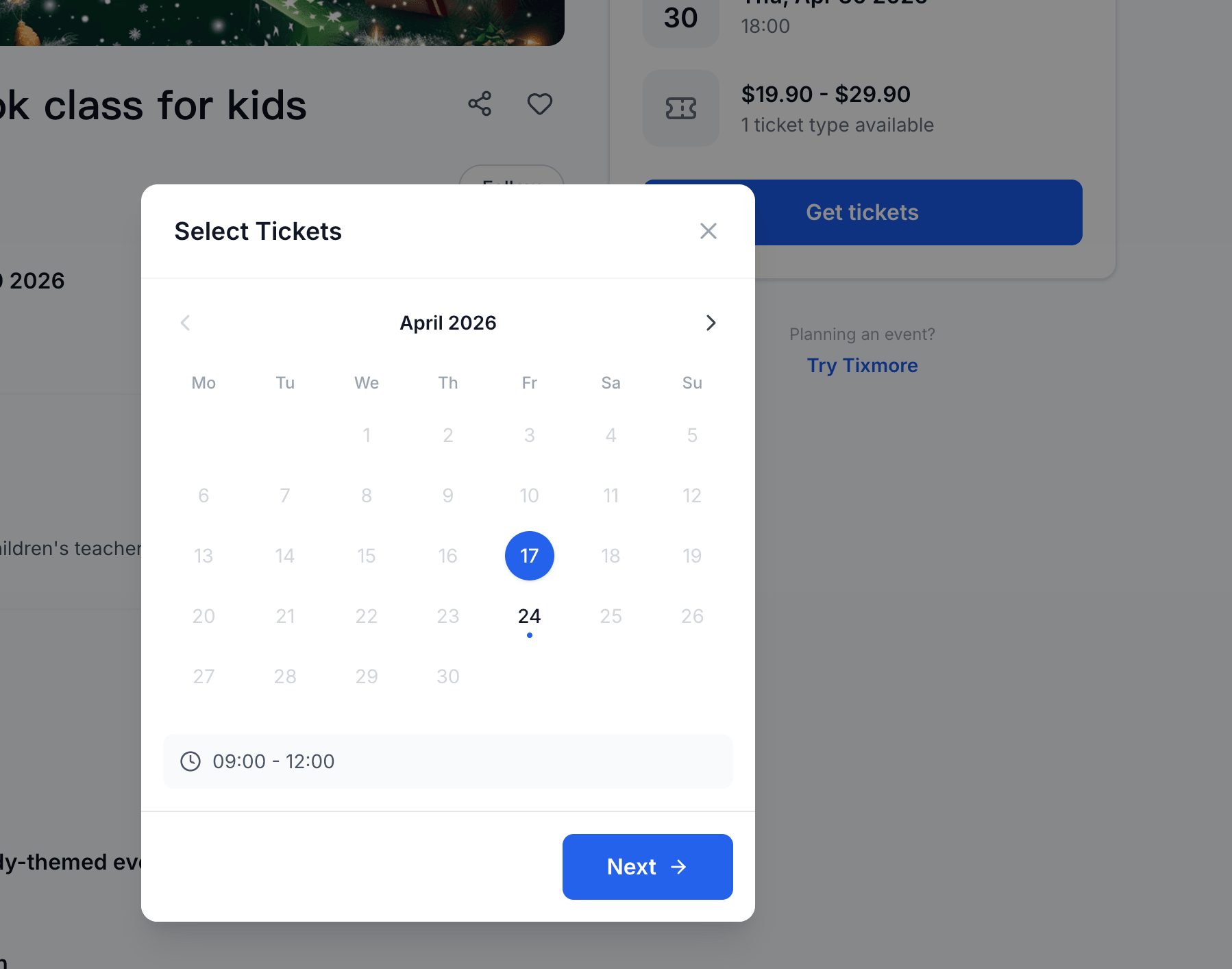
The flow is:
- Attendee clicks "Get Tickets"
- A calendar appears showing available dates (with dots marking available slots)
- Attendee picks a date — if there's only one slot that day, it auto-selects; if multiple, they choose a time
- After selecting a slot, they proceed to choose ticket types and quantities
- The selected date and time are shown in the order confirmation
Attendees can only browse dates up to 3 months ahead. If your recurring rule extends further, the later dates will become available as time progresses.
Tips & Best Practices
Name your rules. If you have multiple recurring rules (e.g., a morning class and an evening class), give each a descriptive name so they're easy to manage in the dashboard.
Start with rule-level capacity. Set the default capacity at the rule level, then only create date-level overrides when a specific session is different. This keeps things simple.
Use exclusions, not deletion. If a session is cancelled for one week, exclude the date rather than deleting and recreating the rule. Exclusions are reversible.
Check the calendar. After creating rules, browse through the calendar to verify that slots appear on the correct dates. This is especially useful for weekly rules — make sure the right days are selected.
Consider "All day" for flexible events. If your event doesn't have a strict schedule (e.g., an open studio or exhibition), use the "All day" option instead of setting arbitrary times.
Quick Reference
| Action | How to |
|---|---|
| Add a one-time slot | + Add a date → Type: Single → set date & time → Save |
| Add a weekly slot | + Add a date → Type: Weekly → set date range, days, time → Save |
| Skip a holiday | Click the date → exclude from the rule |
| Set per-slot capacity | Click a slot → ticket settings → set quantity per ticket |
| Override price for a date | Click the slot → ticket settings → enter price override |
| Hide a ticket from a slot | Click the slot → ticket settings → toggle hidden |
After setting up time slots, consider adding lineups and schedules to give attendees a clear picture of what happens during each session.