Event Page & Theme
Your event page is the first thing attendees see. It should feel like your event — not a generic template. Tixmore's theme system lets you control the colors and typography of your event page so it matches your brand, your vibe, or the mood of your event.
Where to Find It
In your Event Panel sidebar, go to Advanced → Theme.
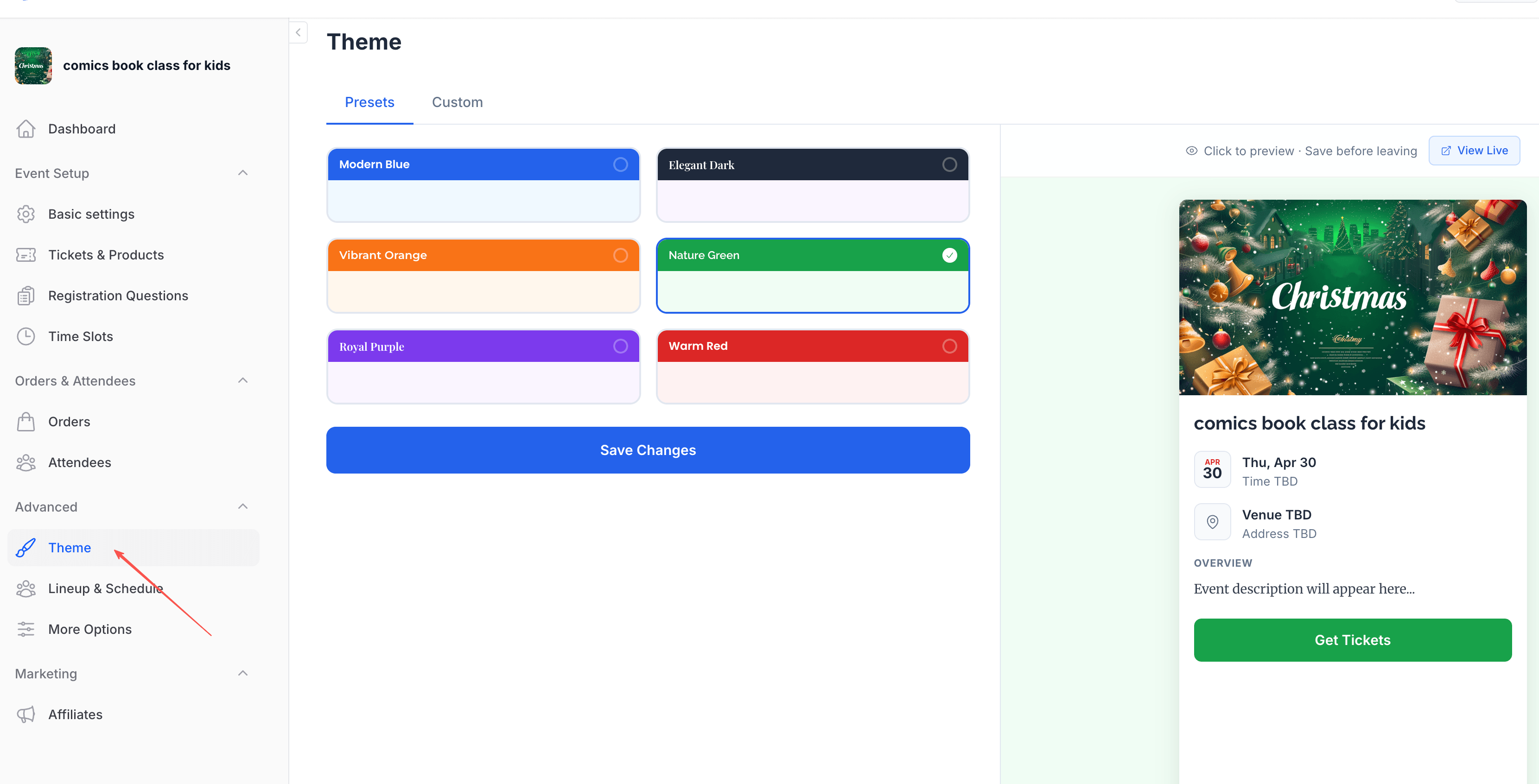
The page is split into two areas:
- Left side — Theme settings (Presets and Custom tabs)
- Right side — Live preview showing how your event page will look
Presets — One Click, Done
The Presets tab gives you a set of professionally designed color schemes. Just click one and you're good.
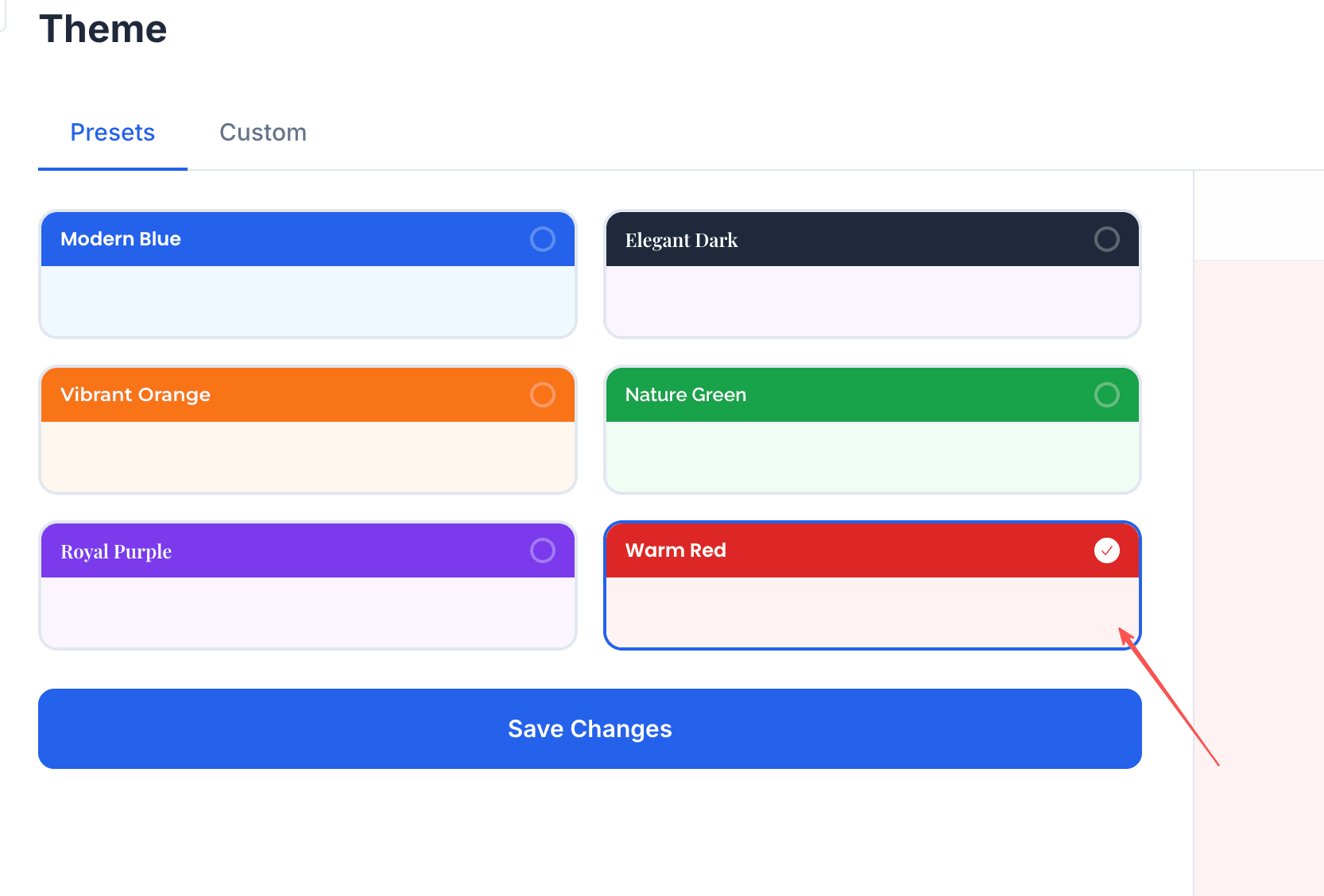
Available presets:
| Preset | Style | Best for |
|---|---|---|
| Modern Blue | Clean, professional blue | Conferences, corporate events, tech meetups |
| Elegant Dark | Dark, sophisticated | Galas, concerts, nightlife, film screenings |
| Vibrant Orange | Energetic, warm | Festivals, sports events, food markets |
| Nature Green | Fresh, organic | Outdoor events, wellness retreats, eco initiatives |
| Royal Purple | Rich, creative | Art shows, music events, creative workshops |
| Warm Red | Bold, festive | Holiday events, celebrations, launch parties |
Click a preset, then hit "Save Changes". The preview on the right updates instantly so you can see the result before saving.
Not sure which to pick? Modern Blue works for almost anything professional. Elegant Dark is great when your cover image is the star. Warm Red is perfect for holiday or celebration-themed events.
Custom — Full Control
Want to go beyond the presets? Switch to the Custom tab for pixel-level control over colors and typography.
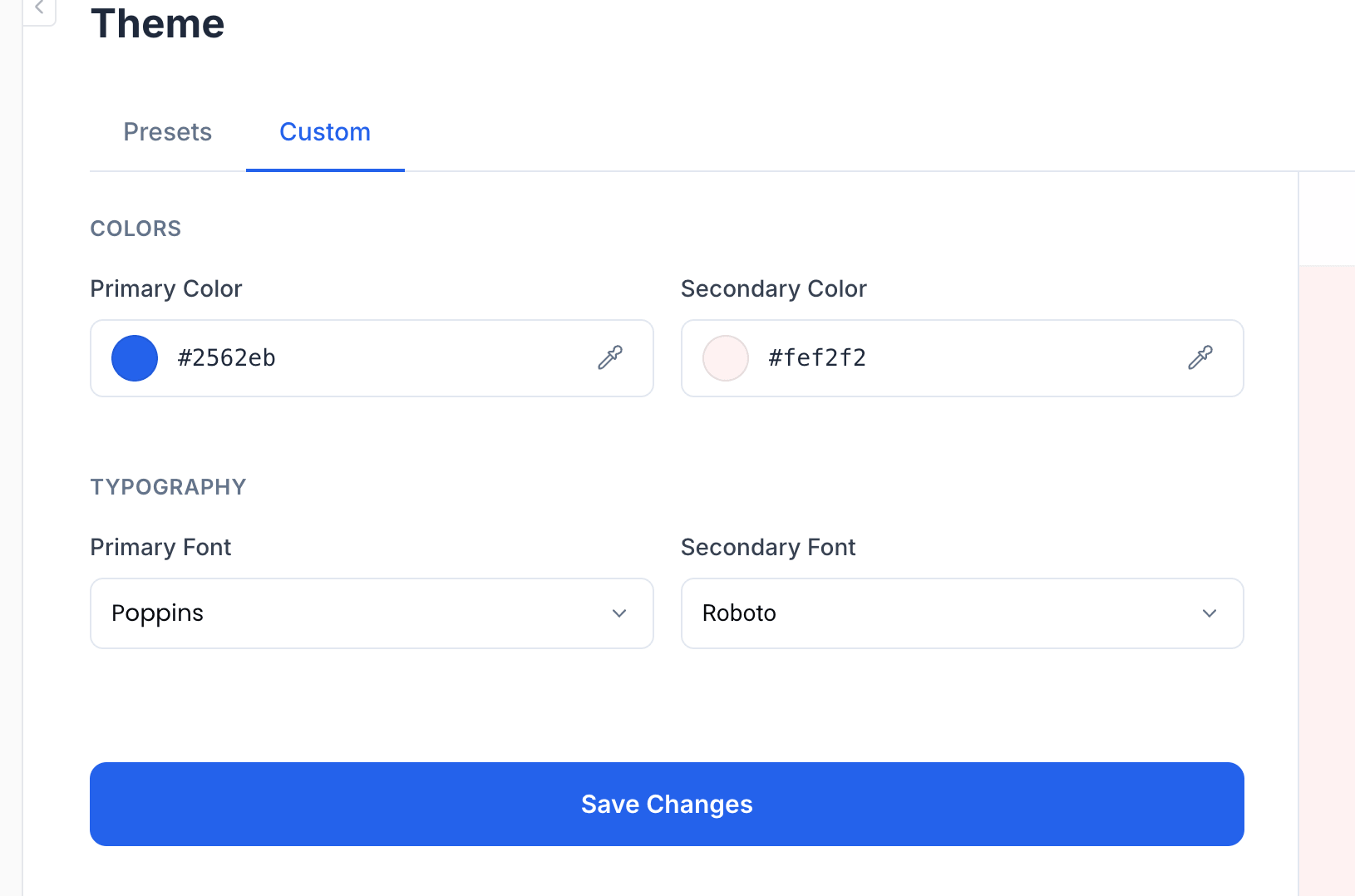
Colors
Primary Color This is your main accent color — it's used for:
- The "Get Tickets" button
- Date icons and highlights
- Section headings and labels
- Links and interactive elements
Pick a color that stands out against your background and is easy to read. Enter a hex code directly (e.g., #2562eb) or use the color picker.
Secondary Color This controls the page background. It's the overall tone of your event page. Tips:
- Use a light, subtle color that complements your primary color
- Avoid pure white — a slight tint (like
#fef2f2for a warm tone) feels more polished - Dark backgrounds work too (pair with a light primary color for contrast)
Typography
Primary Font Used for headings — your event title, section labels, and ticket names. This is the font that sets the personality:
- Poppins — Modern, geometric, friendly
- Playfair Display — Elegant, editorial, classic
- Montserrat — Clean, versatile, professional
- Inter — Neutral, highly readable
Secondary Font Used for body text — descriptions, details, and smaller text. Pick something that's easy to read at smaller sizes. Roboto, Inter, or Open Sans are safe choices.
A good rule of thumb: pair a distinctive heading font with a neutral body font. For example, Playfair Display (headings) + Roboto (body) gives an elegant feel. Poppins + Inter feels modern and clean.
Live Preview
As you make changes, the preview panel on the right side updates in real time. This is a mobile-view preview — what most of your attendees will see.
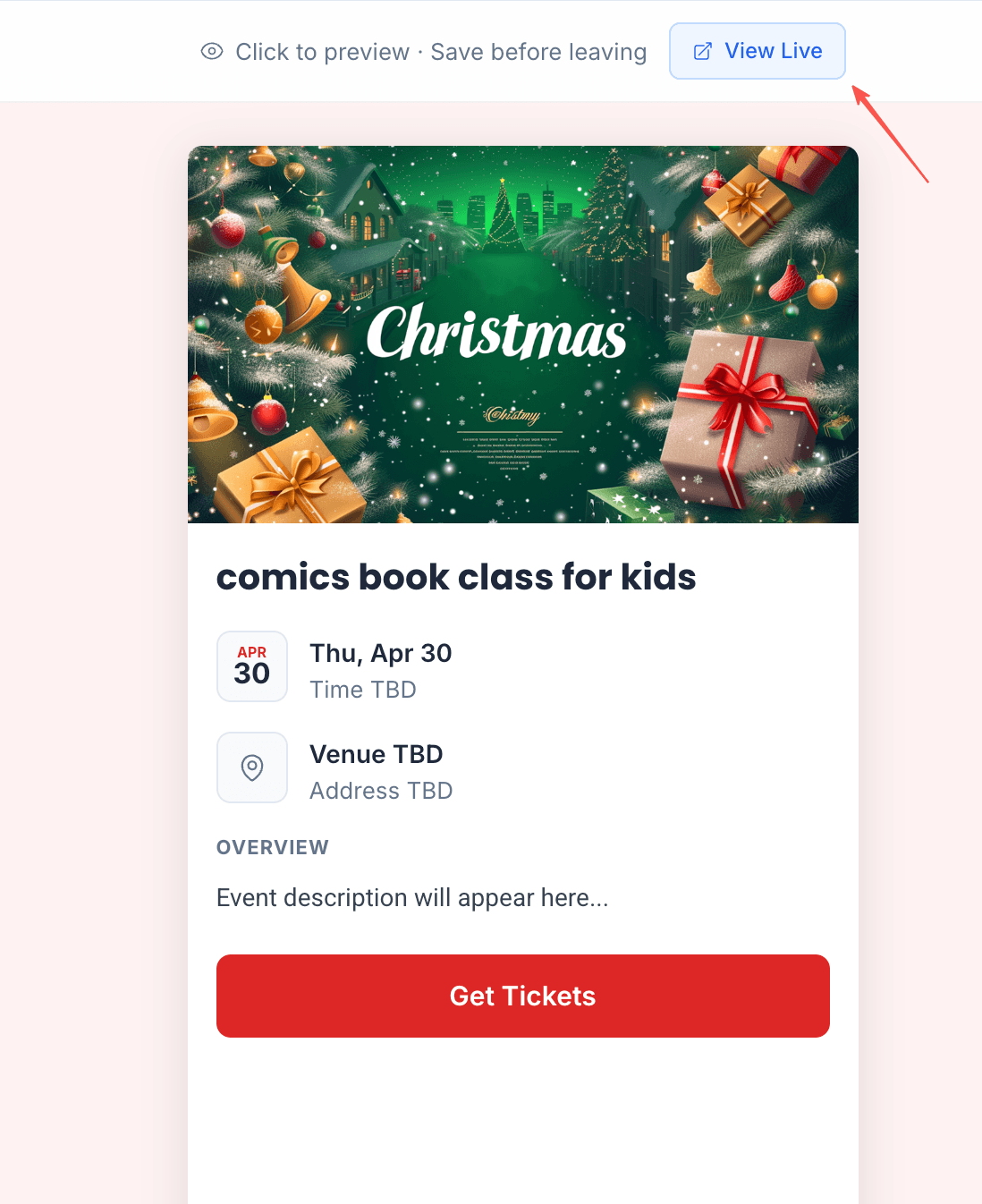
The preview shows:
- Your cover image with the current background color
- Event title in your chosen heading font
- Date, location, and description in your body font
- The "Get Tickets" button in your primary color
Use "Click to preview" to interact with the preview. When you're satisfied, click "View Live" to open the actual event page in a new tab and see the full experience.
The preview is live but your changes are not saved automatically. Always click "Save Changes" before navigating away, or your theme customization will be lost.
Tips for Great-Looking Event Pages
Let your cover image do the heavy lifting. A strong cover photo with a complementary theme color is often all you need. Don't overthink the colors — just make sure the button is visible.
Test on mobile. Most ticket purchases happen on phones. The preview shows the mobile view, but also try "View Live" and check on your actual phone.
Match your marketing. If your event has social media posts or flyers with specific brand colors, use those same colors here. Consistency builds recognition.
Dark backgrounds for visual events. If your event is about music, art, or nightlife, a dark secondary color (like Elegant Dark preset) makes cover images pop and creates an immersive feel.
Keep text readable. If you use a dark primary color, make sure it has enough contrast against your background. If you use a dark background, your primary color should be bright enough to stand out.
After setting your theme, consider adding a lineup and schedule to give your event page more depth.