Affiliate Program
Want someone else to help sell your tickets? The Affiliate Program is Tixmore's built-in marketing tool. It lets you recruit promoters — friends, influencers, partners, street teams — and give each one a unique tracking link. When someone buys a ticket through that link, the sale is attributed to the affiliate, and Tixmore calculates the commission automatically.
You decide the commission rate. Tixmore tracks who sold what. You settle with your affiliates however you like.
Where to Find It
In your Event Panel sidebar, go to Marketing → Affiliates.
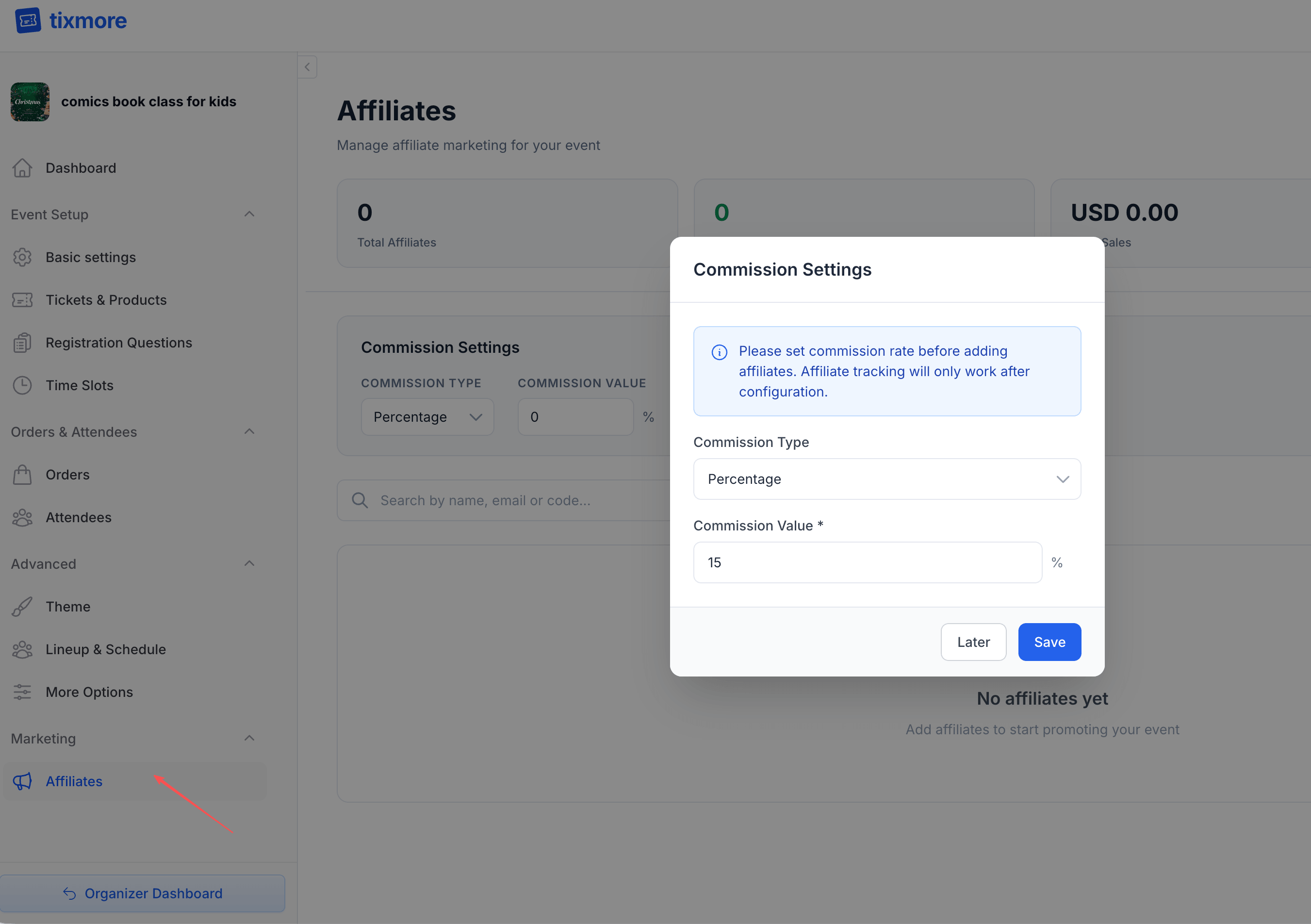
The page shows:
- Stats bar — Total Affiliates, Active count, Total Sales, and Total Commission at a glance
- Commission Settings — Your commission structure for this event
- Affiliate list — All enrolled affiliates with their codes, orders, sales, and commission
Step 1: Set Up Commission
Before adding affiliates, configure how much they'll earn. Click the commission settings area (or it will prompt you when you first visit the page).
| Setting | Description |
|---|---|
| Commission Type | Percentage — A percentage of each order total (e.g., 15% of a $100 order = $15 commission). Fixed — A flat amount per order regardless of order size (e.g., $5 per order) |
| Commission Value | The number — percentage or fixed amount, depending on the type you chose |
Click "Save" to lock in the rate.
You must set a commission rate before adding affiliates. Affiliate tracking only works after configuration. You can change the rate later — new orders will use the updated rate, but existing orders keep the rate that was in effect when they were placed.
Which Type Should You Use?
Percentage works well when ticket prices vary. If you have $30 general admission and $100 VIP tickets, a 10% commission rewards affiliates proportionally — $3 for GA, $10 for VIP. This aligns their incentives with yours.
Fixed works well when you want predictable costs. If you pay $5 per order, you know exactly what each referral costs you, regardless of what tickets they sell. Good for low-price events where a percentage would be too small to motivate.
Step 2: Add Affiliates
Click "+ Add Affiliate" to open the dialog.
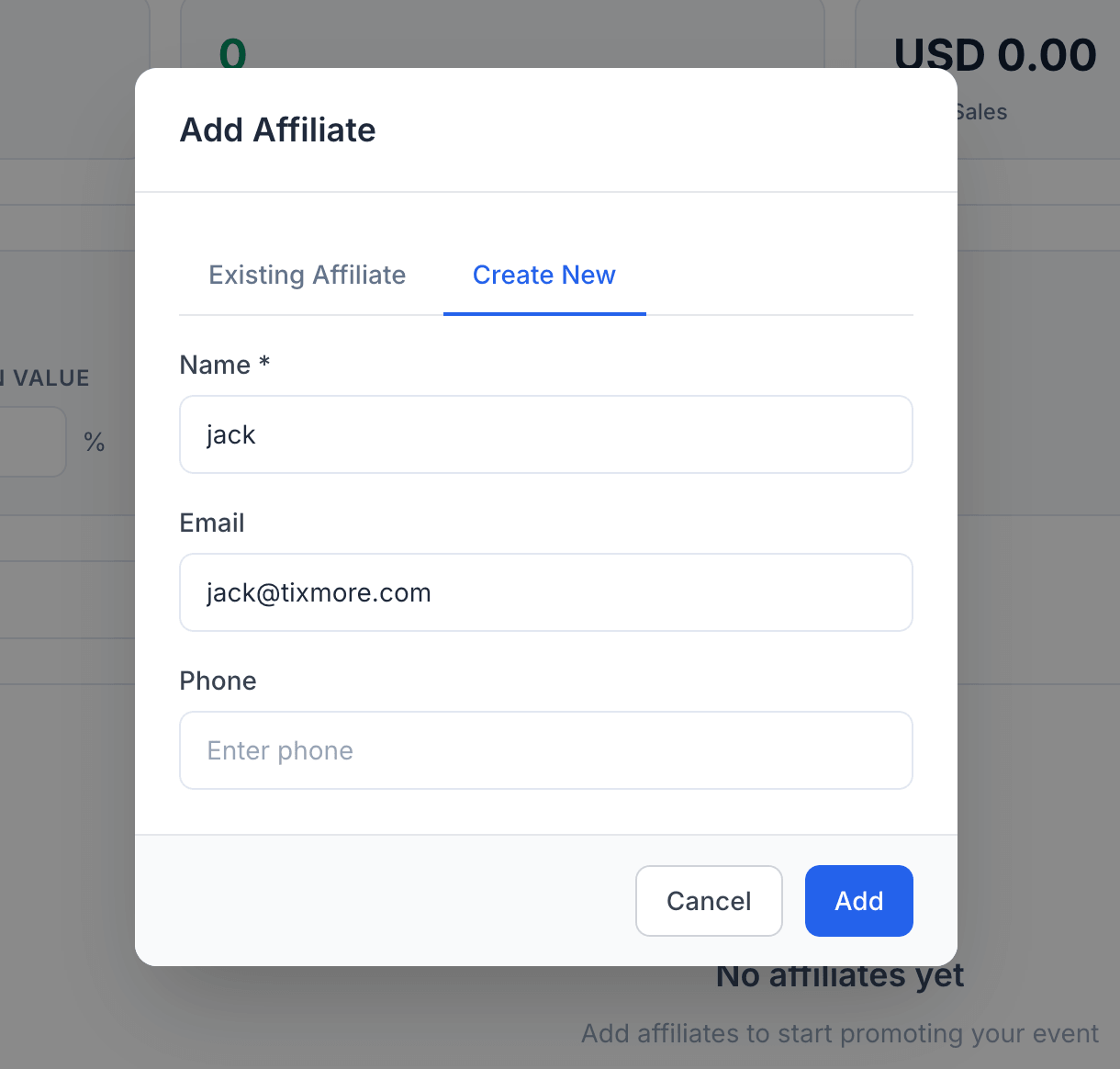
You have two options:
Create New
Fill in the affiliate's details:
| Field | Required | Description |
|---|---|---|
| Name | Yes | The affiliate's name — for your reference |
| No | If provided, the affiliate receives an enrollment email with their promo code and link | |
| Phone | No | Optional contact info |
Click "Add" and the affiliate is created with a unique 6-character promo code (e.g., LKQMGK).
Existing Affiliate
If you've already created affiliates for other events, switch to the "Existing Affiliate" tab and search by name, email, or code. This lets you reuse the same affiliate across multiple events without re-entering their info — each event gets its own enrollment and tracking.
If you provide an email address, the affiliate will automatically receive an email with their promo code and promotion link, so they can start sharing right away.
Step 3: Share the Code & Link
Once an affiliate is added, their card shows all the details they need to start promoting.
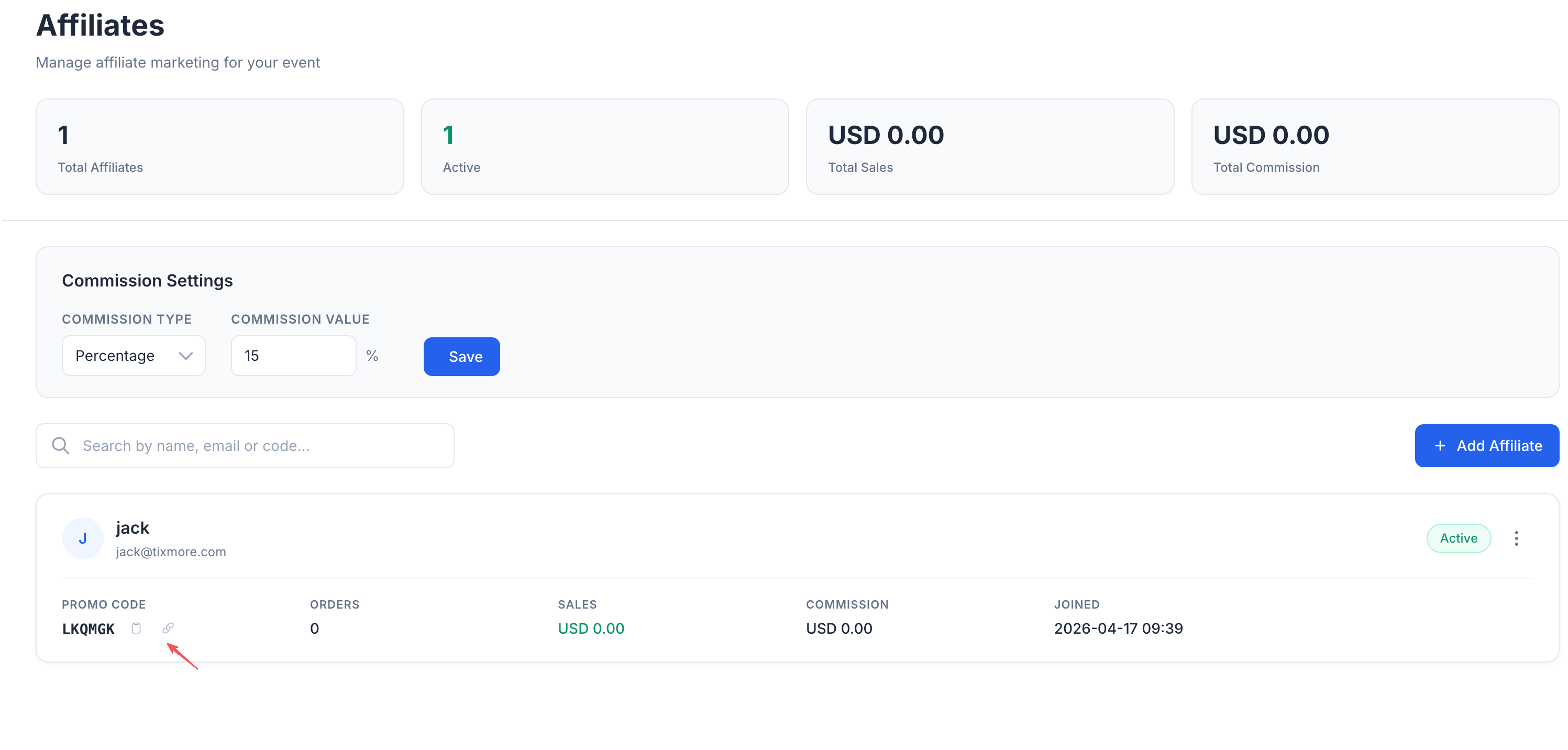
Each affiliate has two ways to drive traffic:
Promo Code
A unique 6-character alphanumeric code (e.g., LKQMGK). Displayed on the affiliate card with a copy button (clipboard icon) next to it.
The code is embedded in the tracking link, but you can also share it separately for manual entry or as a reference.
Affiliate Link
Click the link icon next to the promo code to copy the full promotion URL. The link looks like:
https://tixmore.com/e/your-event-slug?ref=LKQMGK
When someone clicks this link and purchases tickets, the ref parameter tells Tixmore which affiliate referred the sale. The attribution is stored in a browser cookie (valid for 30 days), so the buyer doesn't need to purchase immediately — they can come back later and the affiliate still gets credit.
Give your affiliates this link. They can share it on social media, in group chats, via email, or anywhere they promote your event.
How Tracking Works
Here's what happens behind the scenes:
- Affiliate shares their link — Posts it on Instagram, sends it to a WhatsApp group, etc.
- Someone clicks the link — The
?ref=LKQMGKparameter is captured and stored as a cookie in the buyer's browser - The buyer purchases tickets — Could be immediately or days later (the cookie lasts 30 days)
- Tixmore attributes the order — The order is linked to the affiliate, commission is calculated
- Payment completes — The affiliate order status changes from "Pending" to "Confirmed", and the affiliate receives an email notification about the sale
If a buyer clicks multiple affiliate links, the last one wins — the most recent referral link overwrites the previous cookie.
Monitoring Performance
The affiliate card shows real-time stats for each affiliate:
| Metric | Description |
|---|---|
| Promo Code | The affiliate's unique tracking code |
| Orders | Number of confirmed orders attributed to this affiliate |
| Sales | Total revenue from orders this affiliate referred |
| Commission | Total commission earned (calculated based on your commission settings) |
| Joined | When this affiliate was enrolled in your event |
The stats bar at the top aggregates across all affiliates:
- Total Affiliates — How many affiliates are enrolled
- Active — How many are currently active (not disabled)
- Total Sales — Combined revenue from all affiliate-referred orders
- Total Commission — Combined commission owed across all affiliates
You can also search affiliates by name, email, or code using the search bar.
Viewing Affiliate Orders
For a detailed breakdown of individual orders, you can view the affiliate orders list — showing each order's amount, ticket count, commission, and status (Pending / Confirmed / Refunded).
Managing Affiliates
Use the menu icon (⋮) on each affiliate card to:
- Disable — Temporarily deactivate an affiliate. Their link will stop tracking new orders, but existing orders and commission records are preserved.
- Enable — Re-activate a disabled affiliate.
- Remove — Remove an affiliate from this event entirely.
Commission Settlement
Tixmore tracks affiliate sales and calculates commissions, but does not automatically pay out commissions to affiliates. Settlement is handled by you, the organizer, outside the platform.
After your event, review the affiliate dashboard to see what each affiliate earned, then settle with them however you prefer — bank transfer, PayPal, cash, or any other method you agree on.
Recommended workflow:
- During and after the event, monitor affiliate performance in the dashboard
- After ticket sales close, export or note each affiliate's total commission
- Pay affiliates directly via your preferred payment method
- Keep the Tixmore records as your commission ledger
Tips & Best Practices
Set a competitive commission. 10–20% is common for event promotion. Too low and affiliates won't bother. Too high and it eats into your margins. Consider what your tickets are worth and what motivates your promoters.
Brief your affiliates. Don't just hand them a link. Tell them what the event is about, who it's for, and what selling points to highlight. The better they understand the event, the better they'll promote it.
Give affiliates their link early. The sooner they start sharing, the more time they have to drive sales. Add affiliates as soon as you publish your event.
Use it for team selling. Affiliates don't have to be external partners. If you have a team selling tickets (e.g., a student committee or a volunteer crew), give each person a unique link so you can track individual contributions.
Track and communicate. Let your top performers know they're doing well. A quick "You've sold 20 tickets so far!" message keeps them motivated.
Quick Reference
| Action | How to |
|---|---|
| Set commission rate | Commission Settings → choose type & value → Save |
| Add a new affiliate | + Add Affiliate → Create New → fill name/email → Add |
| Reuse an existing affiliate | + Add Affiliate → Existing Affiliate → search → select |
| Copy promo code | Click the clipboard icon (📋) next to the code |
| Copy affiliate link | Click the link icon (🔗) next to the code |
| Disable/enable an affiliate | Click ⋮ menu → Disable / Enable |
| View affiliate orders | Navigate to the affiliate orders sub-page |
The Affiliate Program is Tixmore's marketing tool for organizers. For everything else about setting up your event, see Creating an Event or Tickets & Products.