From Event Ideas to Your Own Event: Tixmore Solutions

You know you want to bring people together. But what should the event actually look like? A hands-on class, a small community meetup, a guided walk? And once you have an idea, how do you turn it into a page people can book?
Tixmore Solutions connects those two steps: explore a specific event example, experience it as a guest, then use its template to create an event you can make your own.
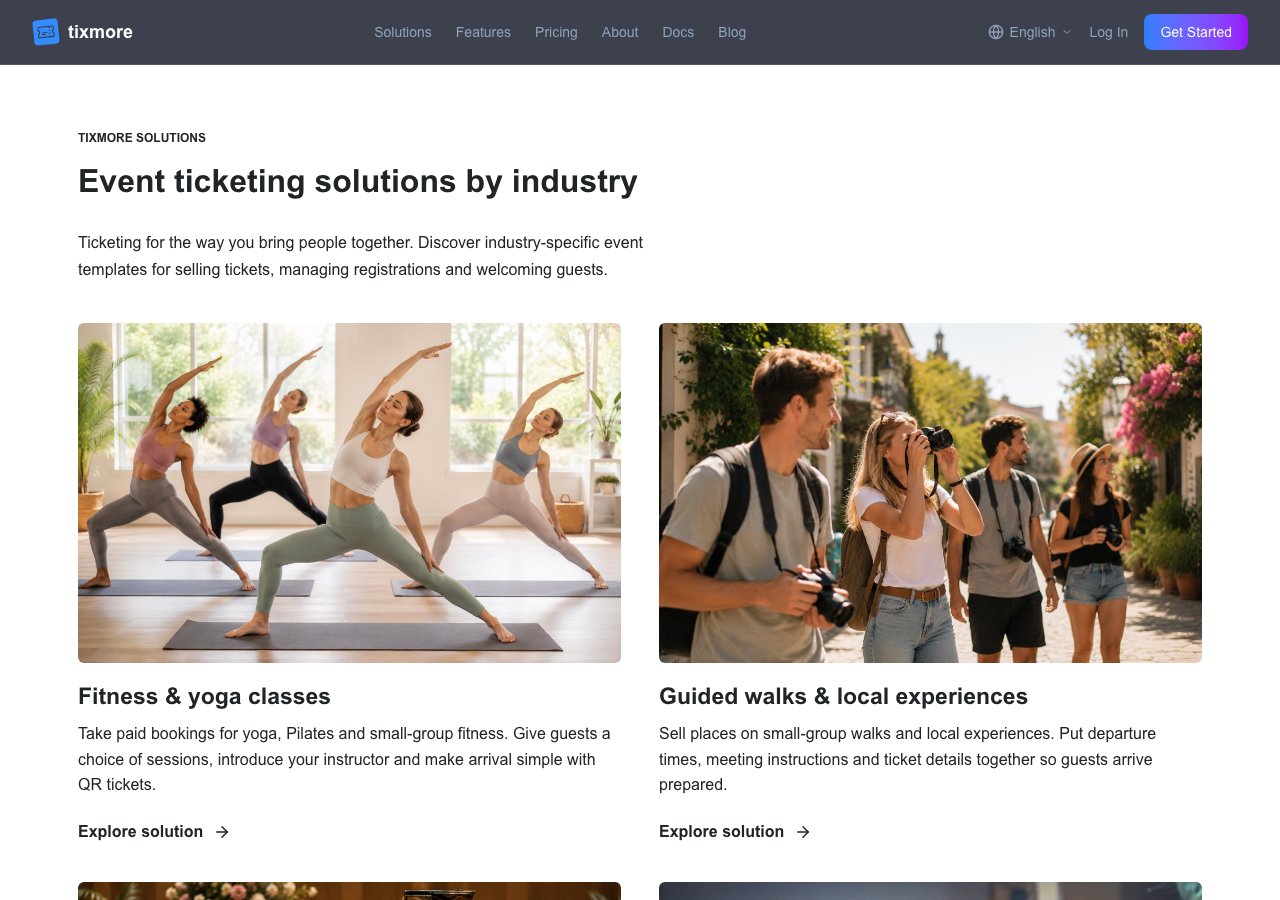
Start with an experience, not an empty form
An event idea becomes easier to plan when you can picture what someone is paying for. Not just "a workshop," but a small group learning a skill, with materials included and something to take home.
Solutions gives you concrete starting points. Browse by the kind of event you want to host, and look for a format you can realistically deliver:
- Teach something practical. A workshop can turn your expertise into a focused session with a clear outcome and an agenda.
- Bring people around a table. A cooking class can combine hands-on preparation, a tasting and a choice of session times.
- Make something together. An art or craft workshop can become a relaxed weekend activity or the starting point for a birthday making session.
- Take the experience outside. A guided photography walk puts the meeting point, departure time and what to bring at the centre of the plan.
- Build a regular gathering. A fitness class or business meetup offers different ways to bring a community together.
These are sample scenarios, not customer success stories or events you can attend. Borrow the structure, then shape the experience around your skills, venue and audience.
A craft session could become a birthday celebration; a cooking class could become a festive get-together. Start with an activity you can deliver well, then adapt the description, materials, timing and tickets. Our holiday event calendar has more seasonal inspiration; check the dates for your country and year before planning.
Try the event before creating your own
Each Solution brings together three things:
- The Solution page: the event format, the organizer's challenges and relevant Tixmore features.
- The demo event: a read-only example of the attendee experience.
- The template: editable starting content and settings used to create an event in your account.
Open a Solution and choose View demo event. You can explore it without creating an account.
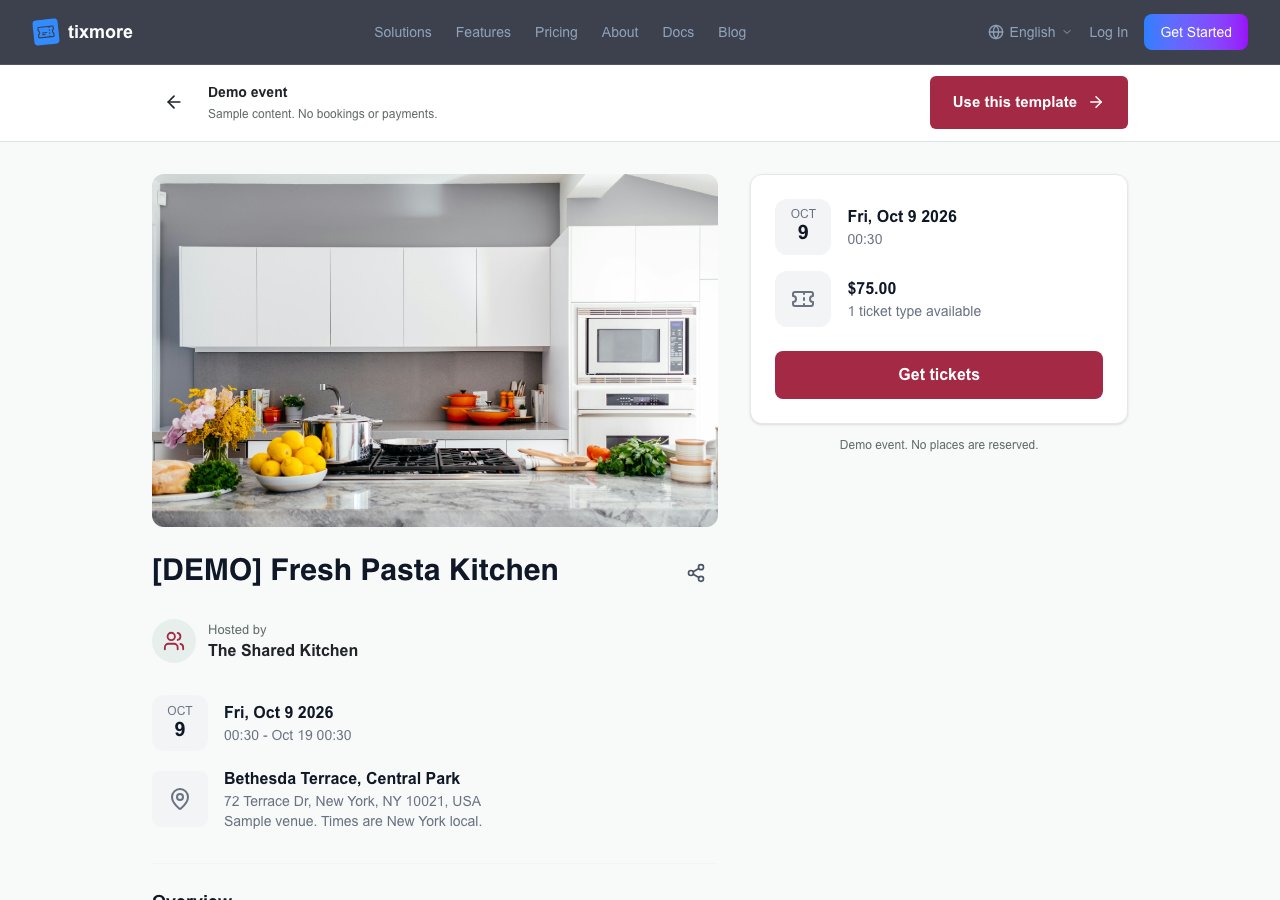
Look at it through a guest's eyes. Is it clear what the ticket includes? What should someone bring? Would an instructor introduction or a short agenda help them decide?
Then select Get tickets. In demos with recurring sessions, choose a date and time before selecting tickets. Other demos go straight to ticket selection. Adjust the quantity and continue to Preview registration to see the sample buyer and attendee information.
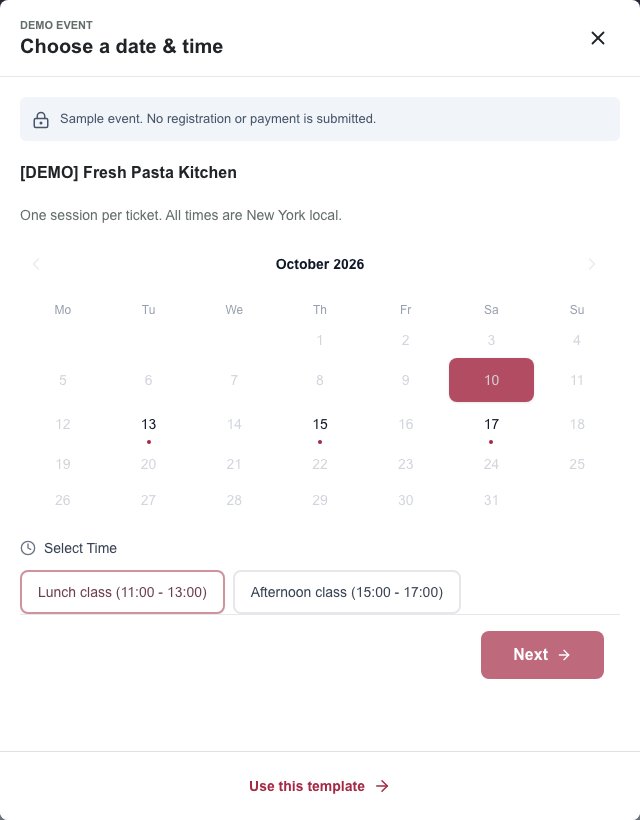
Screenshots show sample dates and prices. The live demo generates a rolling calendar, so the dates you see may differ.
Registration details are read-only examples. Demo interactions do not submit a registration, reserve places or take a payment. You do not need to enter personal or card details to explore the flow.
Turn the idea into your own event
1. Choose Use this template
Select Use this template on the Solution page or inside its demo. Sign up or log in when prompted. Tixmore carries your template selection into Console, creates the event and takes you to Basic Settings in that event's panel.
There is no separate template form to complete first. You start in the normal event editor with sample content already filled in.
2. Keep the useful structure, replace the examples
The template supplies a starting title, description, cover and colour, plus ticket names, prices and quantities. It can also include registration questions, a lineup, a schedule or recurring time slots, depending on the example. Not every template needs every feature.
For a pasta class, you might keep date selection and the class structure, but replace the sample recipe, host and venue. For a meetup, you might keep the agenda and change the speakers, ticket allocation and registration questions.
Template-created events currently start Online. The [DEMO] title prefix marks sample content; it does not disable booking or payment. Check the event's status immediately and choose Unpublish to return it to Draft while you prepare. Do not share its link until you have reviewed the details, and do not treat a draft event page as a place for confidential information.
3. Set your actual dates, location and ticket offer
Work through this checklist before inviting anyone:
- Basic Settings: replace the sample title and description, remove
[DEMO]when ready, and confirm the cover, timezone, dates and venue. The default New York location is a placeholder, not a venue reservation. - Tickets & Products: check the currency, price, quantity, per-order limits and sales period. State clearly what each ticket includes.
- Time Slots: if the template has recurring sessions, set your real date range, weekdays and times. Also review the ticket availability for those sessions.
- Lineup & Schedule: replace sample people and session details, or remove sections you do not need.
- Registration Questions: keep only questions you need to prepare for the event and welcome your attendees.
The read-only demo refreshes its dates when opened. Your newly created event instead starts with a sample window from creation until 10 days later. Set your actual event and ticket-sale dates before sharing. Once saved, real event dates do not automatically move forward. For holiday events, choose the intended holiday date rather than keeping the sample window.
4. Connect payments and check the guest experience
For paid tickets, connect Stripe and confirm that your account is ready to accept payments. Creating an event from a template does not complete Stripe setup for you.
Open View event and review your own page on a phone. Check the description, date, location and ticket options. Unlike the read-only demo, this is a real event: completing checkout can create a real order and charge a card.
Confirm the event is Online when you are ready, then share its link. For the next steps, see ticket setup, recurring time slots and e-tickets and check-in.
A starting point, not a limit
You do not have to run the exact event in the demo. The value is seeing how an idea becomes an attendee experience, then reusing the parts that fit.
Start with three decisions: who is it for, what will they do, and what does their ticket include? Choose a nearby example, try the demo and make the template your own.